Which external DAC actually makes sense for your MacBook? The answer depends more on your headphones, speakers, and connections than on impressive resolution figures. The best DACs for MacBook add something useful: more headphone power, proper line outputs, convenient controls, or broader playback support. They are not automatically an audible upgrade over the headphone jack on a recent MacBook Air or MacBook Pro.
Best MacBook DACs
Chord Hugo 2

- Chord Electronics Hugo 2 Transportable DAC Headphone Amplifier (Black)
Best for: Listeners who want battery-powered headphone amplification and onboard sound adjustment.
The Chord Hugo 2 is a portable DAC/headphone amplifier with an internal rechargeable battery. It can accompany a MacBook between rooms or travel with a headphone setup without requiring a mains-powered desktop amplifier.
Its appeal goes beyond file support. The onboard lossless DSP provides bass and treble adjustment, while selectable crossfeed changes how left and right channels interact during headphone listening. These are meaningful features if you want tonal adjustment without installing system-wide processing software on macOS.
Chord specifies output of approximately 600mW into 30 ohms and 90mW into 300 ohms. As with any amplifier, those numbers must be considered alongside headphone sensitivity. The battery makes the power arrangement flexible, but it also introduces charging and eventual battery aging.
Connection details require particular attention. On the original micro-USB version, the USB audio input and charging socket are separate. Connecting that version to a USB-C MacBook requires a USB-C-to-micro-USB data cable plugged into the audio input, not the charging socket. If buying a revised USB-C version, check its own connection diagram rather than assuming every Mojo 2 has the original port arrangement.
Optical and coaxial digital inputs add flexibility for other sources. Two 3.5mm headphone sockets allow two headphones to connect, but they share the volume setting; this is not independent listening-level control.
The main drawback is usability. Color-coded illuminated buttons are less immediately understandable than a labeled display and conventional volume knob. It is also substantially bulkier than a USB dongle.
Verdict: Worth considering for its battery operation, DSP, and amplification—not because premium conversion automatically makes every recording sound better.
iFi ZEN DAC 3

- Supports all high-res music formats up to PCM 768kHz, DSD512, and MQA
- Equipped with a USB-C input for plug-and-play connectivity
- Offers both 6.3mm Single - Ended and 4.4mm Balanced headphone outputs...
Best for: A desktop listening setup that switches between wired headphones and powered speakers.
The iFi ZEN DAC 3 combines a USB DAC, headphone amplifier, and line-output stage in one relatively compact enclosure. Its USB-C input makes the MacBook connection straightforward: use a data-capable USB-C cable rather than a charging-only cable.
Headphone connections include a conventional 6.35mm socket and a 4.4mm balanced output. Around the back, RCA and 4.4mm balanced line outputs accommodate powered speakers or a separate amplifier. The rear output switch lets you choose fixed output for equipment with its own volume control or variable output controlled by the front knob.
That flexibility is the main reason to choose it. You can build a useful desktop system without immediately adding a separate headphone amplifier or preamplifier. PowerMatch changes gain for different headphones, while XBass+ offers optional bass enhancement without requiring a macOS equalizer.
USB bus power keeps the basic setup simple. An optional compatible 5V external supply provides another power arrangement, but it should not be treated as a mandatory sound-quality upgrade.
PCM support extends to 32-bit/768kHz, comfortably beyond Apple Music’s requirements. More practically, the physical controls give you quick access to volume and gain while the MacBook remains focused on work.
The compromise is portability. Although small for desktop equipment, this is not a dongle you will want hanging from a laptop port. Its balanced connections also require correctly wired cables; they are not universal adapters for ordinary headphone plugs.
Verdict: The strongest all-round choice here when you genuinely need both headphone amplification and speaker connectivity, rather than simply another way to connect headphones.
Topping E30 II
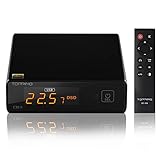
- 👍 Supports high-resolution audio ▶️ TOPPING E30 II uses two...
- 👍 Coaxial and Optical also has good performance ▶️ The optical and...
- 👍 5V power supply,anytime and anywhere ▶️ E30 II uses DC5V for power...
Best for: A MacBook feeding powered speakers, an integrated amplifier, or a separate headphone amplifier.
The Topping E30 II is a DAC with stereo RCA analog outputs, not a headphone DAC/amp. That distinction is essential: it cannot directly power headphones or passive speakers. You need powered speakers, an amplifier, or a separate headphone amplifier after it.
USB-B handles the MacBook connection, using a USB-C-to-USB-B data cable. Optical and coaxial digital inputs accommodate additional equipment. Separate 5V power is required, so plan the power connection as well as the audio cable.
Its most useful feature for speaker systems is the choice between fixed-level DAC operation and variable-level preamplifier operation. Fixed output suits an integrated amplifier or powered speakers whose own volume control you intend to use. Variable output lets the E30 II control listening level, including through its remote.
This distinction matters more in everyday use than its maximum PCM resolution of 32-bit/768kHz. A remote and readable display are helpful when the MacBook is across the room or the speakers’ volume controls are difficult to reach.
Before connecting a power amplifier or sensitive powered speakers, confirm the output mode and begin with a low listening level. Accidentally selecting fixed output can produce a much louder signal than expected.
The limitation is connectivity: RCA outputs are unbalanced, and there are no XLR speaker-system connections. For a short desktop connection, RCA is often entirely practical. Longer cable runs or electrically noisy installations may justify equipment with balanced line outputs instead.
Also distinguish the E30 II from the E30 II Lite and other related models when comparing specifications and included accessories.
Verdict: A focused speaker-system choice when you want selectable output behavior and remote volume control without paying for an unused headphone amplifier.
Schiit Modi 5

- Modi 5 provides super high-performance, sounds great, does the most popular...
- Mesh is our way of bringing our unique, time- and frequency-domain...
- Unison 384 is our own USB interface that we designed to interface...
Best for: An existing amplifier or powered-speaker system that already has convenient volume control.
The Schiit Modi 5 takes a simpler approach than the other desktop options. It converts digital audio to a fixed-level stereo RCA output, leaving amplification and volume adjustment to the equipment downstream.
Its inputs include USB-C, optical, and coaxial digital connections. For a USB-C MacBook, a standard data-capable USB-C-to-USB-C cable provides the direct audio connection. USB operation can power the DAC from the computer; the separate USB power connection supports configurations that need external power, including use with other digital inputs.
That simplicity is its practical advantage. There is no gain setting, headphone mode, or preamplifier menu to manage. Connect it to a spare line input on an integrated amplifier, select that input, and control volume with the amplifier as usual.
The Modi+ supports PCM playback up to 24-bit/192kHz, sufficient for Apple Music’s highest available resolution. A larger advertised sample-rate ceiling would not provide an advantage for that service.
Its compact enclosure is also easy to accommodate beside an amplifier or beneath a monitor. Compared with the E30 II, however, you give up remote-controlled variable output. That makes the Modi+ less convenient for powered speakers with awkward rear-mounted volume knobs.
There is no headphone socket. Connecting headphones through a simple RCA adapter does not turn it into a headphone amplifier, and passive speakers still require a power amplifier.
Because Schiit has offered several Modi generations, verify that the listing is specifically for Modi+ before relying on its connector layout or specifications. Do not assume every product bearing the Modi name is identical.
Verdict: A straightforward choice for a system that already handles amplification and volume well; less suitable when the DAC needs to become the system’s control center.
Topping DX3 Pro+

- 🎵 High-end audio - TOPPING DX3 Pro+ DAC is a high-performance DAC with...
- 🎵 About Topping DX3 Pro+ - Equipped with the latest QCC5125 chip, it...
- 🎵 Bluetooth 5.0 - Connect the Bluetooth of the phone, tablet or notebook...
Best for: Headphone listeners who want additional amplification, selectable gain, and remote control.
The Topping DX3 Pro+ combines USB conversion, a headphone amplifier, and RCA preamplifier outputs. Its USB-B input connects to a USB-C MacBook with a USB-C-to-USB-B data cable. An external power adapter supplies the unit, so it does not depend on the laptop for operating power.
Topping specifies headphone output of up to 1,800mW per channel into 32 ohms and 250mW into 300 ohms, under its published test conditions. Those figures provide a more useful starting point than an unsupported claim that it drives “any headphone.” Actual suitability still depends on headphone sensitivity, your listening level, and any equalization that reduces available headroom.
Two gain settings help accommodate different headphones. Start with low gain, especially with sensitive earphones, and increase it only when the usable volume range proves insufficient. More gain is not inherently better sound.
The front display, multifunction knob, and included remote make the DX3 Pro+ particularly convenient on a desk. USB, optical, and coaxial inputs also let it serve several digital sources. Its RCA outputs support a powered-speaker or amplifier connection, with output modes allowing headphone and preamplifier use.
The main practical limitation is its 3.5mm headphone socket. There is no balanced headphone output, although a properly designed single-ended amplifier does not need one to perform well. Highly sensitive earphones also deserve consideration of background noise and volume adjustment, not just maximum power.
The DX3 Pro+ is an established model, so check the exact model name, seller warranty, and local stock before ordering rather than assuming a newer similarly named unit is identical.
Verdict: A sensible desktop upgrade when your MacBook lacks headphone headroom or you want a remote-controlled headphone-and-speaker hub.
When an External DAC Is Worth Buying
You do not automatically need an external DAC for a MacBook. Its headphone jack already converts digital audio to analog, and recent supported models can drive many headphones well. Buy an external DAC for insufficient headphone power, different outputs, useful physical controls, or playback capabilities your particular MacBook lacks.
Use this simple decision:
- Keep your MacBook’s headphone jack if… playback is clean, your headphones reach comfortable levels with headroom, and you need no extra connections.
- Buy a portable DAC if… you need a small wired-audio adapter or specific playback support away from a desk.
- Buy a desktop DAC/amp if… demanding headphones, speaker connections, or physical controls solve a real limitation.
An inexpensive dongle is not automatically more powerful than a recent MacBook’s built-in output.
Choosing a DAC for Your MacBook
MacBook Model Compatibility
Apple documents enhanced high-impedance headphone support for MacBook Air models introduced in 2022 or later and MacBook Pro models introduced in 2021 or later. Compatible models also support headphone-jack sample rates up to 96kHz.
The introduction date matters: a computer purchased in 2022 could still be an older model. Check Apple menu → About This Mac and the specifications for that exact machine.
Do not extend measurements from one MacBook to every generation. Older Intel models and the 2020 M1 MacBook Air should not automatically be assigned the same capabilities.
A USB Audio Class-compliant DAC generally uses macOS’s built-in audio support without a separate playback driver. Firmware tools and companion apps can have different requirements.
Headphone Power Requirements
Sensitivity indicates how much sound a headphone produces from a given electrical input. Impedance describes its electrical load. You need both to judge amplifier requirements.
High-impedance headphones may need more voltage, while low-sensitivity, low-impedance headphones can demand substantial current. High impedance alone does not establish that an amplifier is necessary.
Compare power specifications at relevant loads, and check whether sensitivity is expressed per milliwatt or per volt. Allow headroom for musical peaks and EQ without targeting unsafe listening levels.
Outputs for Headphones and Speakers
Headphone outputs provide amplification for headphones. RCA and XLR line outputs feed an amplifier or powered speakers; they do not drive passive speakers.
Fixed line output leaves volume control downstream. Variable output allows the DAC to act as a preamplifier.
Balanced headphone wiring is not interchangeable with balanced speaker-system wiring. In particular, do not assume that a 4.4mm headphone socket and an XLR line output serve the same purpose.
Connecting a DAC to a MacBook
The usual signal path is:
MacBook USB port → compatible USB data cable → DAC → headphones or amplifier/powered speakers
A USB-C MacBook can connect to USB-C, USB-B, or micro-USB DAC inputs with the appropriate cable. Match the DAC’s actual audio input, not merely a charging socket.
Start with a direct connection before introducing a hub. If playback drops out, try another data cable and USB port, then check the DAC’s power supply.
Current MacBook headphone jacks do not provide optical digital output. Some much older models did, but that is not a feature to assume.
Apple Music Lossless Settings on macOS
1. In Music, open Music → Settings → Playback. Under Audio Quality, enable Lossless Audio, then choose Lossless or Hi-Res Lossless for streaming and downloads.
2. Open System Settings → Sound → Output and select the DAC.
3. Open Audio MIDI Setup from Applications → Utilities. Choose Window → Show Audio Devices if necessary.
4. Select the DAC and choose a supported bit depth and sample rate from Format, appropriate to the source.
Selecting 192kHz does not improve a 44.1kHz recording. It also does not guarantee automatic sample-rate matching as tracks change. Music’s lossless setting and the output device’s format are separate controls.
Conclusion
An external DAC earns its place by making a MacBook listening system more capable or easier to use. Match the purchase to a specific need: headphone headroom, speaker connections, volume control, or supported playback formats. If the built-in output already delivers clean audio at comfortable levels, keeping it is a sound decision—not a compromise that requires fixing.
FAQ
Do I need an external DAC for a MacBook Pro or MacBook Air?
No, not automatically. Both already contain a DAC for their headphone output, and recent supported models offer capable headphone amplification. An external unit becomes useful when you need additional headroom, different connections, physical controls, or playback support beyond your exact MacBook’s capabilities. Start by identifying a limitation.
Will an external DAC improve my MacBook’s sound quality?
An improvement is possible, but it is not guaranteed. External hardware can help when the existing output produces audible noise, distortion, or insufficient headphone volume. If the built-in output is already clean and adequately powerful, added connections and controls may be more noticeable than a change in sound quality.
How do I connect an external DAC to a MacBook?
Connect the MacBook’s USB port to the DAC’s USB audio input with a data-capable cable. Then connect headphones to a headphone output, or an amplifier or powered speakers to line outputs. Select the DAC in macOS Sound settings. A charging-only cable cannot carry the digital audio connection.
Do I need a DAC for Apple Music Hi-Res Lossless on a MacBook?
It depends on the recording and your MacBook’s supported output rate. Compatible recent headphone outputs support up to 96kHz, so external hardware is not required for every high-resolution track. For native playback above your built-in output’s limit, use a DAC supporting that recording’s sample rate and configure macOS appropriately.
Will a USB DAC improve Bluetooth headphones connected directly to my MacBook?
No. When Bluetooth headphones connect directly to the MacBook, a wired USB DAC is outside the audio path. The headphones receive the wireless signal and perform their own digital-to-analog conversion. An external DAC matters only if you change to a supported wired analog connection, which some Bluetooth headphones do not offer.
Best MacBook DACs
Chord Hugo 2
Best for: Listeners who want a battery-powered headphone DAC/amp with onboard sound adjustment and greater amplification flexibility.
The Chord Hugo 2 is portable in the bag-friendly sense rather than the dongle sense. It contains a rechargeable battery, headphone amplification, digital inputs, and physical controls inside a compact but comparatively substantial enclosure.
Connector identification matters. The original Mojo 2 uses Micro-USB for USB audio and a separate Micro-USB charging connection. For that version, a USB-C MacBook needs a data-capable USB-C-to-Micro-USB cable, or an appropriate adapter and data cable. Check the exact hardware revision being sold rather than ordering a cable from the product name alone.
Two 3.5 mm headphone sockets allow two pairs of headphones to connect, although they share the volume setting. They are not independently controlled listening zones. Optical and coaxial digital inputs also make the unit useful with compatible sources beyond a laptop.
Chord specifies 600 mW into 30 ohms and 90 mW into 300 ohms. Those figures indicate useful amplification capability, but they still need to be matched to headphone sensitivity, listening level, and measurement conditions.
The onboard controls provide volume adjustment, crossfeed, and tonal adjustment through its UHD DSP system. These functions are a more concrete reason to choose it than vague promises of extra musical detail. They let you adjust playback without depending entirely on Mac software.
Battery operation separates its power arrangement from that of a basic USB-powered dongle. However, it introduces charging management, and simultaneous listening and charging requires attention to the correct connections.
Its drawbacks are premium positioning, extra bulk, and controls that take longer to learn than a conventional knob.
Verdict: Worth considering when its amplification, battery operation, and onboard processing meet a defined need. It is excessive for someone who simply wants a small USB-C headphone socket.
iFi GO Link 2 Mx

- Upgrades headphone listening from any USB device
- Dual ESS Sabre DAC chips form a balanced circuit
- Balanced 4.4mm output provides up to 241mW power
Best for: A compact wired-headphone setup that needs USB-C connectivity without a separate battery or desktop enclosure.
The original iFi GO Link combines a DAC and headphone amplifier in a small dongle. Its captive USB-C cable connects directly to a current MacBook, while its 3.5 mm output accepts conventional wired headphones and earphones. Power comes from the computer, so there is no charging routine or external supply.
Its specified format support reaches 32-bit/384 kHz PCM and DSD256. Those capabilities exceed Apple Music’s maximum 24-bit/192 kHz catalog resolution, but format support should not be confused with an audible advantage. The practical question is whether it provides the connection and headphone-driving capability you need.
iFi specifies more than 70 mW into 32 ohms and approximately 2 V into 600 ohms. These figures describe different operating conditions; they should not be combined into a universal claim about headphone compatibility. The GO Link is most naturally suited to earphones and reasonably efficient headphones rather than exceptionally demanding models.
For a MacBook owner, its chief advantage is flexibility. You can leave headphones connected to the dongle, move the combination between compatible devices, or use it when the laptop’s headphone jack is inconveniently positioned. It also provides a separate audio output that can remain attached to a docking arrangement.
The main compromises are its fixed cable, single headphone connection, and lack of a physical volume knob. It does not provide dedicated RCA line outputs for speakers.
Verdict: A sensible budget USB-C DAC for MacBook users who value a compact, transferable headphone connection. Buy it for that convenience and appropriate amplification—not an assumed improvement over the built-in jack.
Apple USB-C to 3.5 mm Adapter

- The USB-C to 3.5mm Headphone Jack Adapter lets you connect devices that use...
- Works with all devices that have a USB-C connector and support iOS 10 or...

Best for: Adding a simple headphone output with minimal expense, weight, and setup.
The Apple USB-C to 3.5 mm Adapter is an active audio device, not merely a cable that changes connector shape. It contains both a DAC and headphone amplification, taking digital audio from USB-C and delivering analog audio through its 3.5 mm socket.
Its bus-powered design makes it particularly straightforward. Connect it to the MacBook, select it as the output if necessary, and attach wired headphones. There is no battery, gain switch, charging cable, or separate power supply to manage.
The adapter supports up to 24-bit/48 kHz playback. That covers CD-quality lossless audio and many everyday listening requirements, but not native playback of Apple Music’s highest-resolution material. A higher-resolution file can still play after conversion to the selected output format.
Independent electrical measurements of the US model commonly identify approximately 1 V RMS maximum output under suitable conditions. Apple does not publish a comprehensive headphone-power specification, and regional versions can differ. Avoid assuming that every adapter sold under a similar description has identical output capability.
For efficient earphones and everyday portable headphones, this can be enough. For headphones needing greater voltage or current, it is not a substitute for a more capable amplifier. A recent MacBook’s built-in jack may already offer greater driving capability.
The practical benefit is having an inexpensive replacement or additional output. It can also be useful when switching the same wired headphones between compatible USB-C devices.
The drawbacks are its short, delicate cable, limited output headroom, and lack of physical controls.
Verdict: Choose it for straightforward USB-C headphone connectivity. If your MacBook’s existing jack already works well, treat this as a convenience purchase rather than an audio upgrade.
iFi ZEN DAC 3
Best for: A permanent MacBook desk setup serving both headphones and powered speakers.
The iFi ZEN DAC 3 combines digital conversion, headphone amplification, and analog line-output functionality in one desktop enclosure. Its USB-C input connects to a MacBook using a data-capable USB-C cable, avoiding the older USB-B connection found on some desktop audio equipment.
Headphone connections include a conventional 6.3 mm socket and a 4.4 mm balanced output. Around the back, RCA and 4.4 mm balanced line outputs provide connections for compatible powered speakers or an external amplifier. Those rear outputs are not substitutes for amplified headphone sockets.
A physical volume knob makes everyday adjustment easier than reaching for software controls. The fixed/variable line-output setting is particularly useful: variable mode allows the unit to control speaker level, while fixed mode suits equipment with its own volume control.
The ZEN DAC 3 supports PCM up to 32-bit/768 kHz and DSD512. These limits comfortably exceed Apple Music requirements, although their presence does not establish that ordinary recordings will sound different.
USB bus power keeps the basic setup simple. An optional compatible 5 V external supply offers another power arrangement; check the supplied accessories before buying rather than assuming a power adapter is included. PowerMatch adjusts headphone gain, while XBass+ offers optional bass enhancement.
Its main practical advantage is replacing several daily connection tasks with one desktop hub. Headphones and speakers can remain attached while the MacBook connects through USB.
The compromises are desk space, additional analog cables, and more settings than a dongle requires. There are no XLR outputs, and passive speakers still need a power amplifier.
Verdict: A well-matched desktop DAC/amp for MacBook users who need headphone connections, powered-speaker outputs, and accessible volume control in one device.
MacBook USB-C → integrated DAC → stereo RCA inputs → powered speakers
An amplifier with RCA inputs can replace the powered speakers in that chain. Passive speakers cannot: they still require amplification between the DAC and speaker terminals.
This is not a headphone DAC/amp. There is no headphone socket, gain adjustment, or physical volume knob. It is also not an analog recording cable; the intended direction is USB digital audio to RCA analog output.
Before purchasing, confirm the exact cable length, supported macOS versions, and the input connections on your speakers. Set the speaker or amplifier volume low during initial setup, particularly if the output level is unfamiliar.
The principal drawback is its integrated construction. If a connector or cable fails, the whole assembly may need replacement. It also lacks the connection flexibility and accessible controls of a desktop unit.
Verdict: A practical connection-first option for an uncomplicated RCA speaker system. Choose it to solve a wiring requirement, not as a replacement for headphone amplification or a fully featured desktop DAC.
Choosing a DAC for Your MacBook
Headphone Power and Sensitivity
Headphone sensitivity, impedance, desired listening level, and EQ headroom all affect amplification needs. Low-sensitivity headphones can be demanding even with relatively low impedance; high-impedance headphones are not automatically difficult.
Compare power specifications only at matching loads and stated distortion conditions. If you already get clean, comfortable playback with headroom for musical peaks, additional amplifier power may provide little practical benefit.
Connections for Headphones or Powered Speakers
Match the output to your equipment: 3.5 mm or 6.3 mm for conventional headphones, 4.4 mm for compatible balanced headphone cables, and RCA or XLR for appropriate speaker systems.
A DAC-only device may require a separate headphone amplifier. Never use an improvised adapter to connect single-ended headphones to a balanced amplifier output.
USB Power and Portability
Bus-powered DACs draw power from the MacBook. Battery-powered designs need charging, while externally powered desktop units add a power connection.
Check the actual USB connector and included cable. USB-C describes the connector, not a guarantee of data capability, audio compatibility, or charging behavior. Class-compliant USB Audio Class devices generally work with macOS without a separate playback driver.
Setting Up a USB DAC on macOS
1. Connect the DAC with a data-capable USB cable. Connect any required external power separately. If detection fails through a hub, try a direct MacBook connection.
2. Select the output. Open System Settings → Sound → Output and choose the DAC.
3. Open Audio MIDI Setup. Find it in Applications → Utilities, select the DAC, and choose a supported format. For ordinary music listening, 24-bit output at a suitable sample rate is sufficient.
4. Configure Apple Music if needed. Under Music → Settings → Playback → Audio Quality, enable Lossless Audio and select the desired streaming or download quality.
5. Start playback quietly. Raise volume gradually, especially when changing headphones, gain settings, or speaker connections.
Apple Music uses ALAC for lossless delivery; macOS sends decoded audio to the DAC. Selecting 192 kHz in Audio MIDI Setup does not make lower-resolution recordings higher quality.
It also does not guarantee automatic per-track sample-rate switching. Playback behavior depends on the application and software version. If native-rate playback matters, check the output format as tracks change rather than relying solely on a lossless badge.
FAQ
How good is the MacBook Pro DAC?
The MacBook Pro’s built-in DAC is often sufficient for transparent everyday listening, although performance and output capability vary by model. Conversion quality and headphone-driving capability are separate issues. If your headphones reach comfortable levels cleanly, with room for musical peaks, an external device may offer mainly connection or control benefits.
Will an external DAC improve AirPods or Bluetooth headphones?
No. A conventional wired USB DAC sits outside the normal Bluetooth playback path. Wireless headphones receive a digital wireless signal and use their own internal conversion and amplification. Connecting a USB DAC to your MacBook does not upgrade that path; you would need wired headphones connected to its analog output.
Is USB or optical better for connecting a MacBook to a DAC?
USB is the straightforward choice for current MacBooks because it connects directly to compatible DACs and supports common high-resolution formats. Optical output exists only on certain older Mac models. A modern 3.5 mm headphone jack is not automatically a mini-TOSLINK output, so check the exact computer’s specifications before purchasing optical equipment.
Conclusion
A useful external DAC solves an identifiable problem rather than simply adding another box to your MacBook. Start with the built-in output, assess listening headroom, and identify the connections your headphones or speakers require. When additional hardware supplies missing power, practical controls, or suitable analog outputs, it earns its place; otherwise, keeping the system simple is a sound decision.